What a pin blocks
Every way an update can reach a pinned plugin or WordPress, what happens on each, and how to let an update through when you are ready. Pins are set under Tools → Version Pin → Pins.
Every way of updating
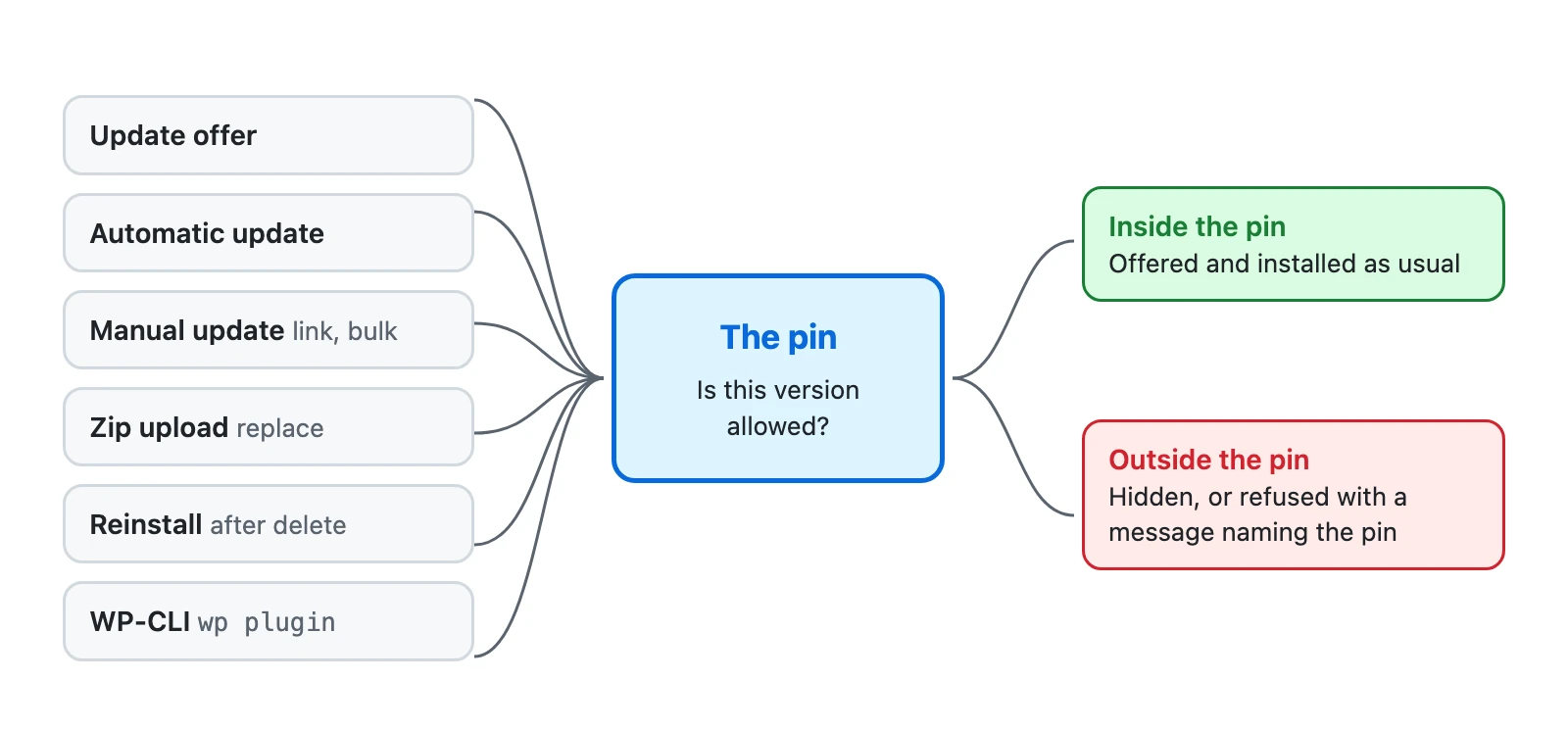
A pin is checked wherever WordPress decides whether a plugin moves. A version the pin allows goes through as usual. A version it does not allow is hidden where it would be offered, and refused where it would be installed.
The update offer
An update past the pin is not shown on the Plugins screen or under Dashboard → Updates, so nobody updates by habit. A line under the plugin says what is being held back instead, for example "5.7.2 is available, held back by this pin." That line comes from WordPress's own update check: Version Pin makes no request of its own for it.
An update inside the pin is offered as usual.
Automatic updates
An automatic update past the pin is refused, even when automatic updates are switched on for the plugin. An automatic update inside the pin, such as 5.3.8 under a patch-only pin at 5.3.7, still installs.
Version Pin never switches automatic updates on or off.
Manual updates
The update link, a bulk update from the Plugins screen and Dashboard → Updates all install through WordPress's updater, which checks the pin before it replaces any file. A version past the pin is refused with the message below, and the plugin stays as it was.
Uploading a zip
When you upload a plugin's zip under Plugins → Add New Plugin → Upload Plugin, Version Pin reads the version inside the zip. A version past the pin is refused straight away, before WordPress offers Replace current with uploaded, and the installed plugin is left untouched. A version the pin allows goes on as usual.
Reinstalling a deleted plugin
Deleting a pinned plugin does not remove its pin: the pin shows Missing. If you install the plugin again, from the plugin directory, from a zip or through the REST API, a version past the pin is refused. Install the pinned version, or remove the pin first.
WP-CLI
The same check runs for the command line. wp plugin update does not move a pinned plugin past its pin, and
wp plugin install <plugin> --version=<version> --force with a version past the pin fails with the message. There is
no flag to get past a pin: a pin the command line ignores is not a pin. Remove it first with
wp version-pin remove <plugin> (see WP-CLI).
WordPress core
When WordPress itself is pinned:
- Offers: a WordPress release past the pin is not offered. Under a patch-only pin, the newest release of the pinned series is still offered.
- Automatic updates: an automatic WordPress update past the pin is refused; one inside the pin still installs.
- Manual updates: an update past the pin is refused before anything is downloaded, whether it is started under
Dashboard → Updates or with
wp core update --version=<version>.
The message you see
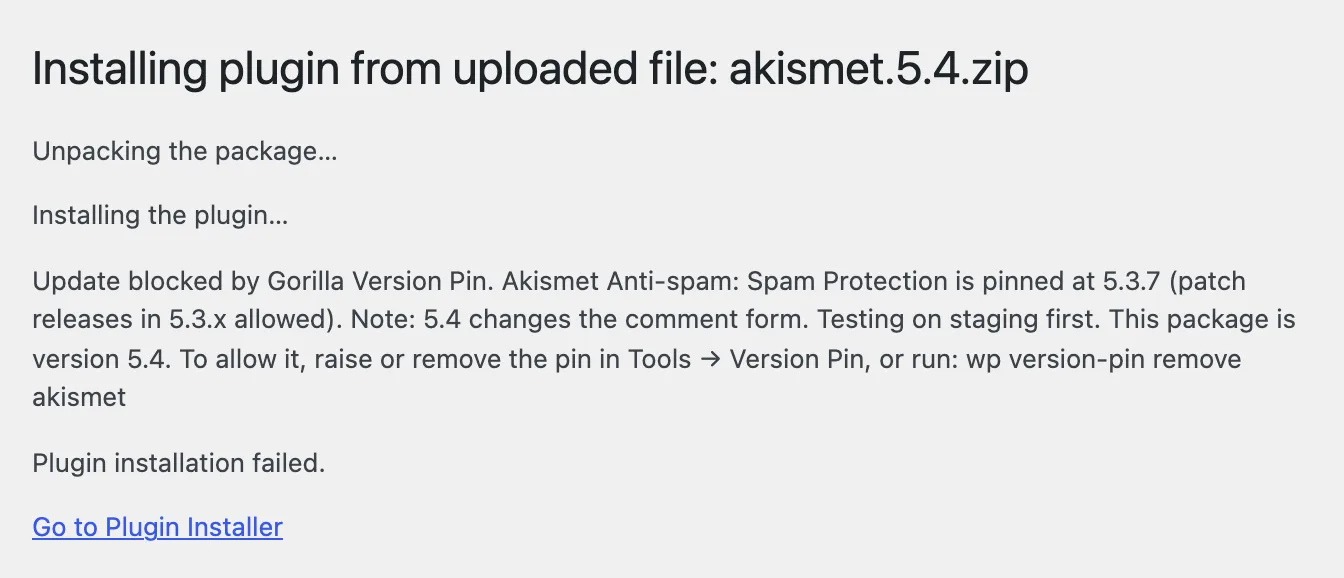
When an update is refused, WordPress shows Version Pin's message where the update would have run: on the update screen, in the upload result, or as the error from WP-CLI. For a plugin it reads:
"Update blocked by Gorilla Version Pin. Akismet Anti-spam: Spam Protection is pinned at 5.3.7 (patch releases in 5.3.x allowed). Note: 5.4 changes the comment form. Testing on staging first. This package is version 5.7.2. To allow it, raise or remove the pin in Tools → Version Pin, or run: wp version-pin remove akismet"
Part by part:
| Part | What it tells you |
|---|---|
| "Akismet Anti-spam: Spam Protection is pinned at 5.3.7 (patch releases in 5.3.x allowed)." | Which pin stopped the update. An exact pin reads "pinned at 5.3.7 (exact)". |
| "Note: …" | The note saved with the pin. Left out when the pin has no note. |
| "This package is version 5.7.2." | The version that was refused. |
| "To allow it, …" | What to change, on the screen or from the command line. |
If the version inside a package cannot be read, the package is refused too, because Version Pin cannot tell whether the pin allows it: "The version of this package could not be read, so it is refused while the pin exists."
For WordPress the message reads, for example: "Update blocked by Gorilla Version Pin. WordPress is pinned at 7.1.3 (patch releases in 7.1.x allowed). This package is version 7.2. To allow it, raise or remove the WordPress pin in Tools → Version Pin."
Allow an update
When you are ready for a newer version, change the pin, then update as usual:
- Raise the pin to the new version: see Change a pin.
- Switch Patch releases on, if you only want the fixes in the pinned series.
- Remove the pin: see Remove a pin, or run
wp version-pin remove <plugin>(WP-CLI).
The update is offered again with WordPress's next update check. To see it straight away, choose Check again under Dashboard → Updates.
What no plugin can stop
Files copied onto the server without WordPress: over FTP or SFTP, with a git pull, or by a deploy tool. WordPress is not asked, so no plugin hears about it. Version Pin shows the result instead: the pin's state becomes Drift, and you can roll the plugin back or raise the pin. See Drift.
When file changes are disabled
Some sites switch off every file change in WordPress, for example with DISALLOW_FILE_MODS in wp-config.php. Then
nothing can update through WordPress at all, and the Pins tab says: "File changes are disabled on this site, so
nothing can update anyway. Pins are kept for when that changes."
Administrators can still see and change their pins on such a site.
While Version Pin is deactivated
Pins do not apply while the plugin is deactivated: updates behave as if it were not installed. Your pins are kept, and apply again as soon as you reactivate it. When you delete the plugin, its pins are deleted with it.
Next step
Older-series fixes: let a patch-only pin receive a fix that WordPress itself never offers.