The Pins tab
What Tools → Version Pin → Pins shows, and what to do about each part. Every field on it is explained on Settings.
What the tab shows
From top to bottom:
- Notices, when something about the site affects your pins.
- WordPress core: the WordPress pin. Shown only to people allowed to update WordPress.
- Add a pin: choose a plugin and pin it.
- Pins: the table of pinned plugins, with each pin's state.
- WordPress.org release lookup: the Find older-series fixes switch.
- Save Changes, which saves everything on the tab at once.
Notices at the top
Another update manager is active
"Also active: Easy Updates Manager. Two plugins controlling updates make it hard to see which one decided. Use one."
Another active plugin also controls updates. Both keep working, and Version Pin changes nothing in the other plugin, but when an update is held back it is hard to tell which plugin decided. Keep one of them. See Other update managers.

Multisite
"Version Pin does not support multisite yet. Nothing is enforced on this network."
On a multisite network, pins can be saved but are not applied. See Multisite.
File changes are disabled
"File changes are disabled on this site, so nothing can update anyway. Pins are kept for when that changes."
See When file changes are disabled.
WordPress core
Below the Pin WordPress core switch, one line says what the WordPress pin does now:
| Line | Meaning |
|---|---|
| "Running 7.1.3. Not pinned: WordPress updates as usual." | WordPress is not pinned. |
| "Running 7.1.3. Allows 7.1.x, blocks 7.2." | A patch-only pin: maintenance and security releases of 7.1 install, 7.2 waits. |
| "Running 7.1.3. Nothing above 7.1.3." | An exact pin. |
| "Running 7.2, which is above the pin. Raise the pin, or restore an older WordPress." | WordPress is newer than the pin, for example because it was updated before you pinned it. The pin does not downgrade WordPress. |
When a newer WordPress is held back, a second line says so: "WordPress 7.2 is available, held back by this pin."
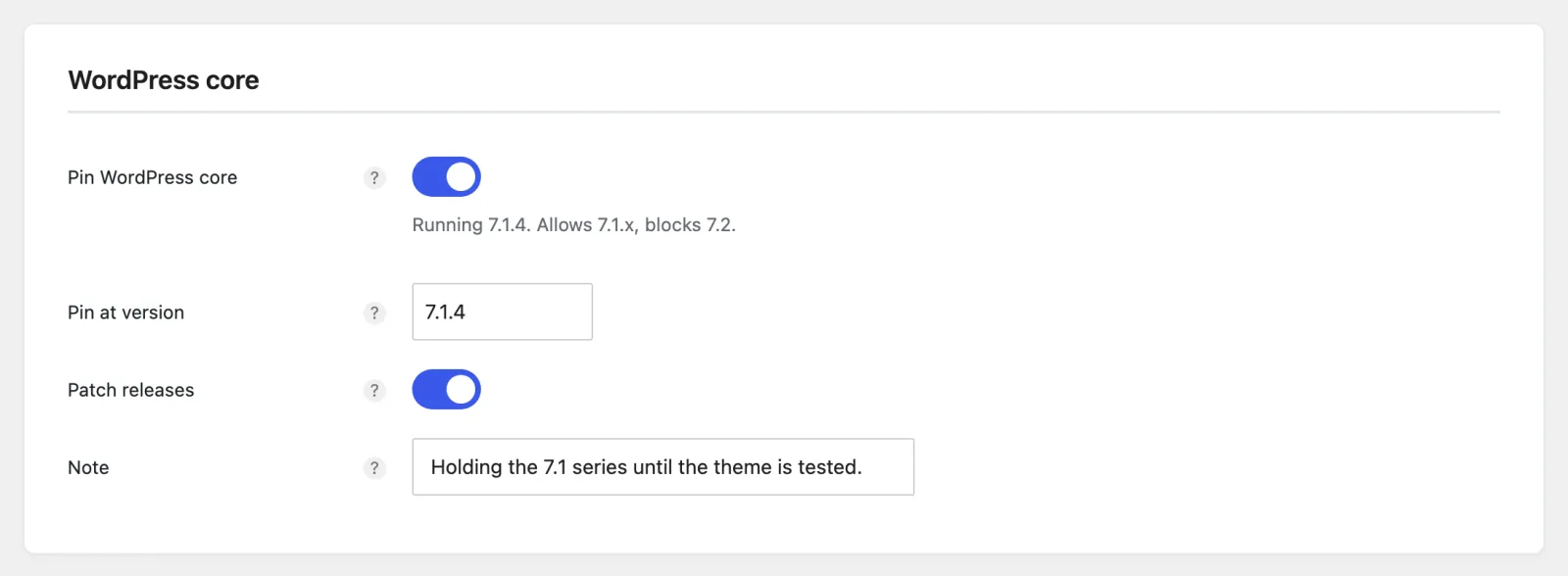
The fields are explained in Settings.
The pin table
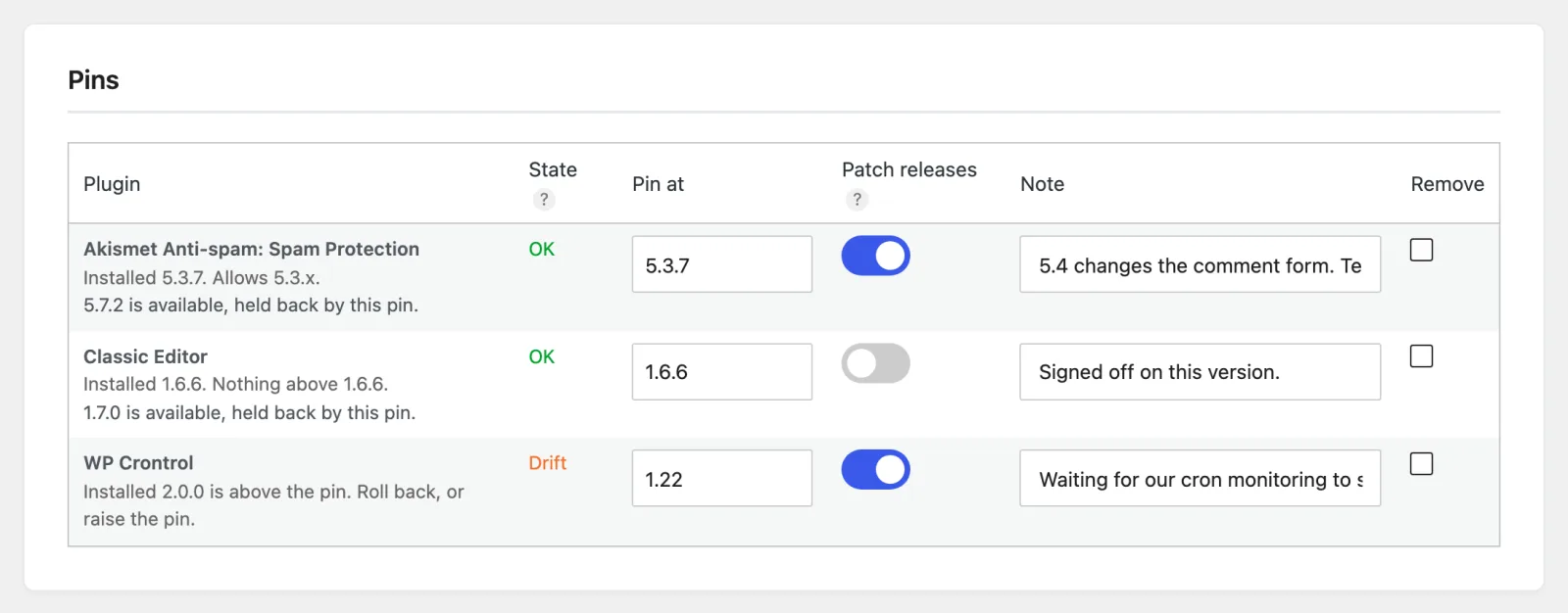
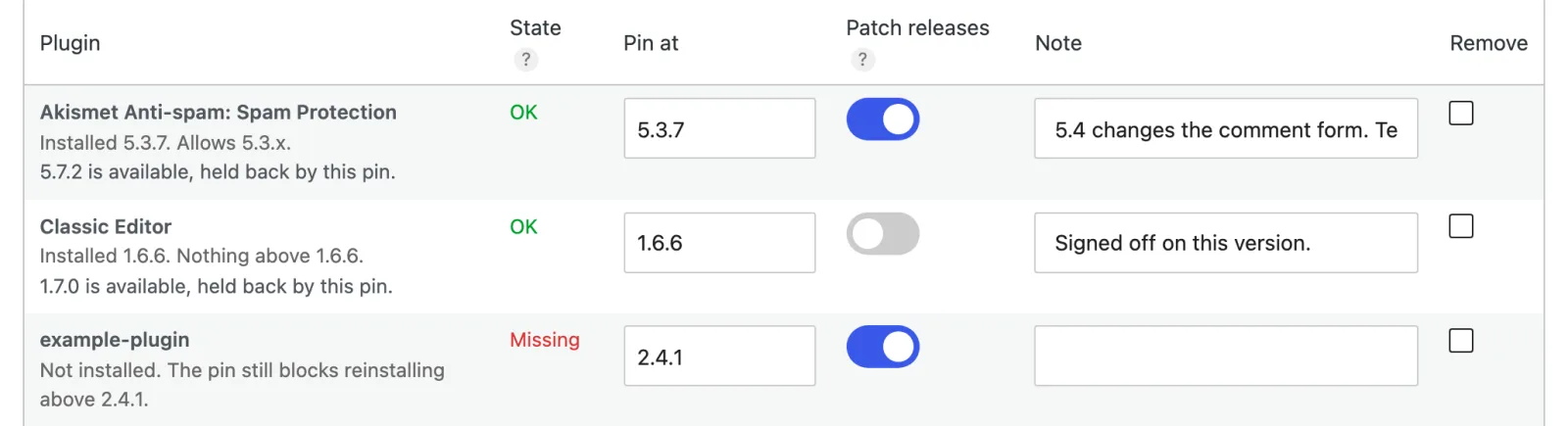
One row per pinned plugin, with these columns:
| Column | What it holds |
|---|---|
| Plugin | The plugin's name, and the lines described below. |
| State | OK, Drift or Missing: see States. |
| Pin at | The pinned version. Change it to raise or lower the pin. |
| Patch releases | On for a patch-only pin, off for an exact pin. |
| Note | Why the plugin is pinned. |
| Remove | Tick it and save to remove the pin. |
With no pins, the table says "No plugins are pinned yet."
States
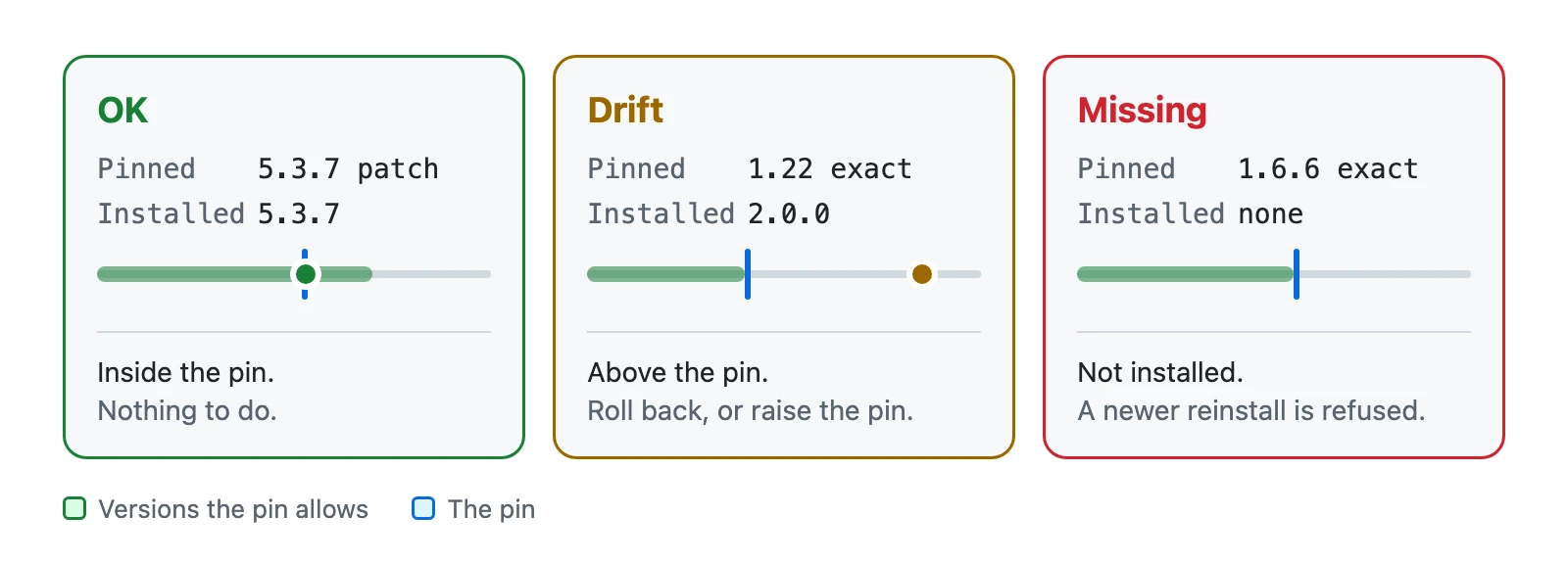
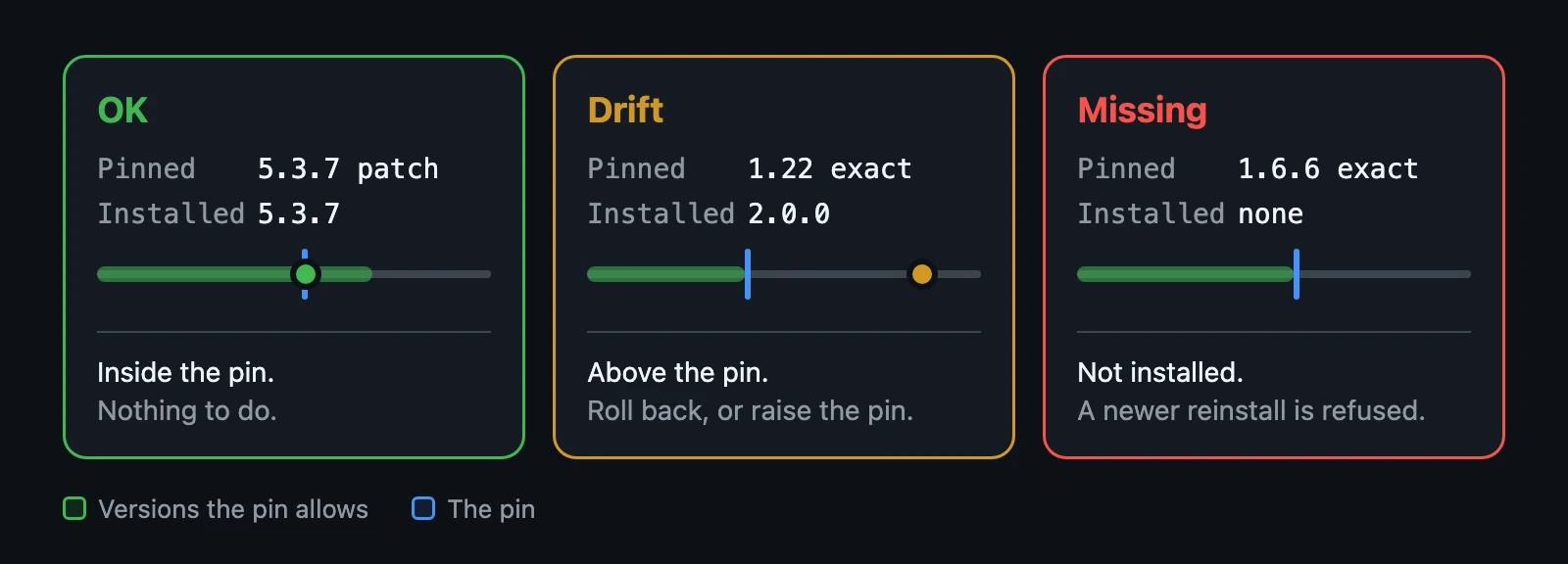
| State | Means | What to do |
|---|---|---|
| OK | The installed version is allowed by the pin. | Nothing. |
| Drift | The installed version is newer than the pin allows. | Roll the plugin back, or raise the pin. |
| Missing | The plugin is not installed. | Nothing, unless you no longer need the pin. |
OK
The installed version is the pinned version, an older one, or, under a patch-only pin, a newer release in the pinned series. The pin is doing its job.
Drift
The installed version is newer than the pin allows. A pin never downgrades a plugin, so this happens when the files changed without WordPress (over FTP, with git or by a deploy tool), when the plugin was updated before you pinned it, or when you lowered the pin. The line under the name says "Installed 2.0.0 is above the pin. Roll back, or raise the pin."
To fix it, either install the pinned version again, for example from a zip, or raise the pin to the installed version.
Missing
The plugin was deleted, but its pin was kept. The line under the name says "Not installed. The pin still blocks reinstalling above 1.6.6." If the plugin is installed again, a version past the pin is refused (see Reinstalling a deleted plugin). Remove the pin if you no longer need it.
The lines under a plugin's name
Installed and allowed
What the pin allows, next to what is installed:
- "Installed 5.3.7. Allows 5.3.x." for a patch-only pin.
- "Installed 1.6.6. Nothing above 1.6.6." for an exact pin.
Held back
"5.7.2 is available, held back by this pin." A newer version exists and the pin is holding it back. The version comes from WordPress's own update check; no extra request is made. To take it, see Allow an update.
When its vendor offers it
"Installed 5.3.7. Allows 5.3.x when its vendor offers it." The plugin is not hosted on WordPress.org, so patch releases arrive only if its vendor's updater offers them. See Premium plugins.
Exact because of the version
"Exact (this version cannot be read as a series)". Patch releases is on, but the pinned version has no series, so the pin works as an exact pin. See Versions with no series.
Older-series results
With Find older-series fixes on, a line such as "Newest allowed release: 5.3.7." See Reading the results.
Messages after saving
Pins saved
"Pins saved." Everything on the tab was saved. Any message below it is about one pin.
Pinned below the installed version
"WP Crontrol 2.0.0 is installed, above the pin at 1.22. The pin does not downgrade it: roll it back, or raise the pin."
The pin was saved, but the plugin is already newer than the pin, so its state is Drift. For WordPress the message reads "WordPress 7.2 is running, above the pin at 7.1.3. The pin does not downgrade WordPress: roll it back, or raise the pin."

Not a version number
"\"latest\" is not a version number. Use digits and dots, for example 5.1.4. The pin was not changed."
Type a version such as 5.1.4 or 5.1.
A wildcard
"\"5.x\" is a wildcard. Type a version, for example 5.1.4: a patch-only pin also allows the later releases in its series. The pin was not changed."
A pin holds a plugin at a version, so 5.x, 5.1.x or 5.* cannot be one. To allow every 5.1 release, pin at
5.1 (or the 5.1 release you run) with Patch releases on.
Treated as an exact pin
"Example Plugin is pinned at 3, which cannot be read as a series, so it is treated as an exact pin."
The pin was saved, with Patch releases on, but the version has no series. See Versions with no series.
Not installed
"That plugin is not installed, so it was not pinned."
The plugin was deleted between opening the screen and saving. Reload the tab. To pin a plugin that is not installed, use WP-CLI.
On the Plugins screen
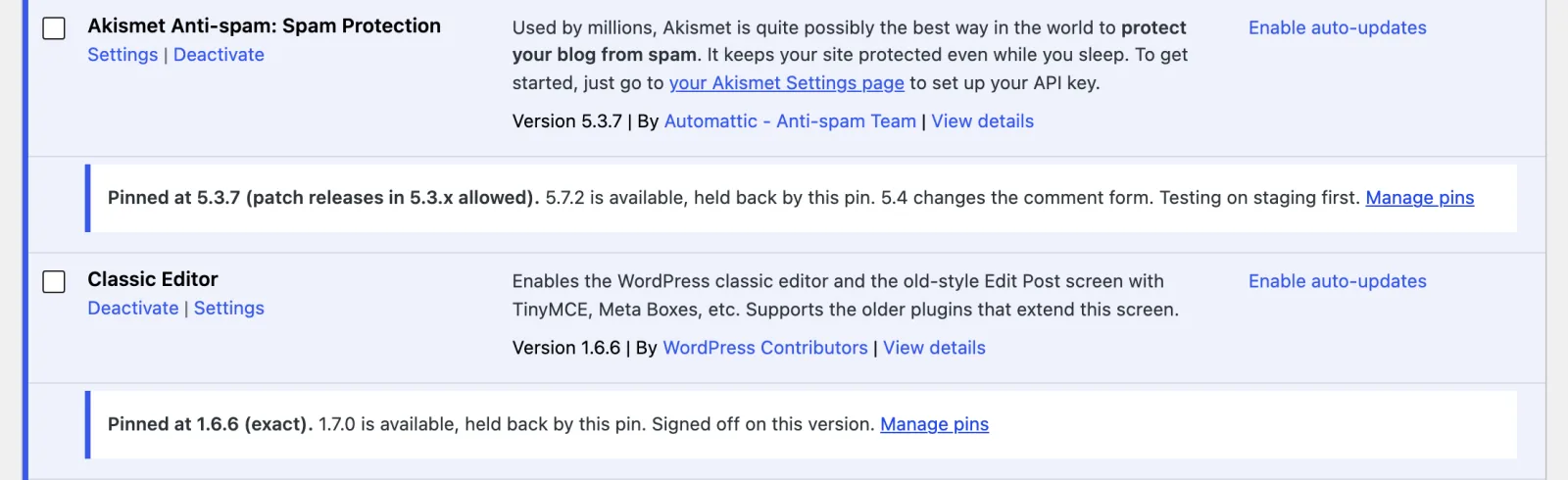
Under each pinned plugin, the Plugins screen shows one line with the pin, any version held back and your note, for example: "Pinned at 5.3.7 (patch releases in 5.3.x allowed). 5.7.2 is available, held back by this pin. 5.4 changes the comment form. Testing on staging first." On Drift, the line is shown as a warning and adds "Installed 2.0.0 is above the pin." Manage pins opens this tab.
Related
- Settings: every field on this tab.
- What a pin blocks: what happens when someone tries to update.