Getting started
Install Gorilla Version Pin, pin one plugin and see the pin at work. It takes a few minutes, and everything happens on one screen: Tools → Version Pin.
Install it
- In WordPress, go to Plugins → Add New Plugin, search for "Gorilla Version Pin" and choose Install Now. Or choose Upload Plugin and upload the plugin's zip file.
- Choose Activate.
- Open Tools → Version Pin, or choose Settings under the plugin on the Plugins screen.
The screen has two tabs: Pins, where you do everything, and About, with questions and answers and the system information to send with a support request.
You need to be allowed to update plugins to see the screen, as an administrator is.
Pin your first plugin
On the Pins tab, in Add a pin:
- Plugin: choose the plugin. Every installed plugin is listed, active or not, with its installed version.
- Pin at version: the installed version fills in. Leave it, unless you want to allow a little more.
- Patch releases: leave it on, so the small fixes in the same series still install.
- Note: say why, for example "5.4 changes the comment form. Testing on staging first."
- Choose Save Changes.
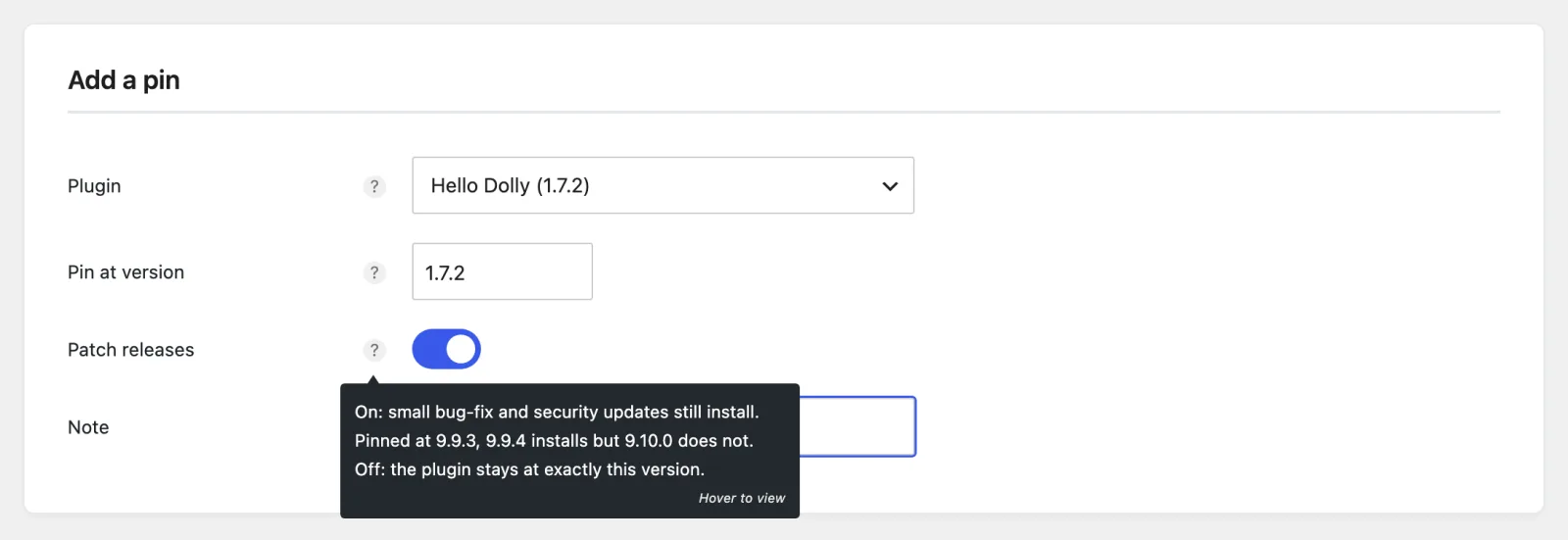
The screen says "Pins saved." and the plugin moves into the Pins table. Each field is explained on Settings.
Check that it works
- In the Pins table, the plugin's state is OK, and the line under its name says what the pin allows, for example "Installed 5.3.7. Allows 5.3.x."
- On the Plugins screen, a line under the plugin shows the pin and your note: "Pinned at 5.3.7 (patch releases in 5.3.x allowed)."
- When a newer version outside the pin exists, both places say so, for example "5.7.2 is available, held back by this pin." The plugin no longer shows an update, and an automatic update will not install it.
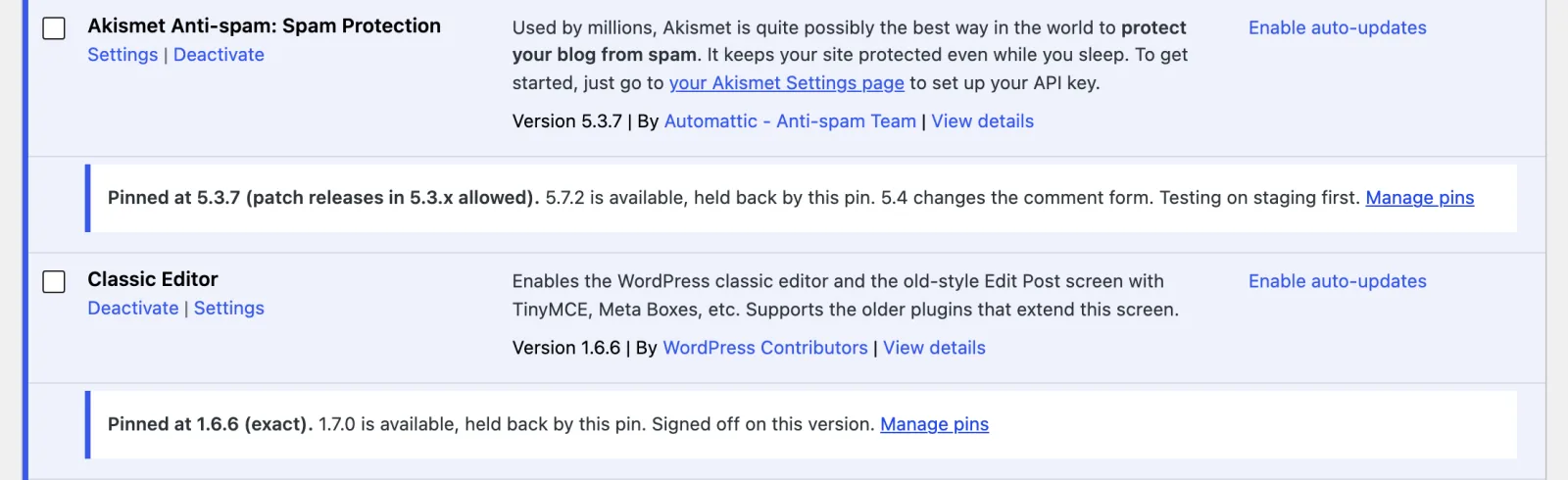
What each state and line means: The Pins tab.
What to do next
- Pin WordPress itself in the WordPress core section of the same tab: see Settings.
- Learn the two kinds of pin, and what a version number tells you: How it works.
- Receive fixes released for an older series, which WordPress itself never offers: Older-series fixes.
- Pin from the command line: WP-CLI.
Next step
How it works: exact and patch-only pins, and what a version number tells you.